
We have been in business for over 20 years now, and Code Team Blue has built, rebuilt, upgraded, repaired, and maintained enough WordPress websites to know that the upgrade process is not always something to look forward to.
Yes, it is great to get new features, better tools, and improvements to the WordPress dashboard. But major updates also tend to expose the legacy issues that inevitably come with supporting older websites. When you have been maintaining client sites for a long time, you eventually run into outdated themes, abandoned plugins, old PHP versions, custom code, and websites that were built in ways that made sense years ago but are now difficult to update.
This article covers some of the new features in WordPress 7, along with a practical look at some of the upgrade issues we have seen and expect to see with older WordPress websites.
Old and Unusual WordPress Themes
As most WordPress developers know, outdated or unusual themes are often one of the biggest problems during a major WordPress update.
In some cases, you can update the theme, make a few code changes, and keep the site moving forward. In other cases, you are basically out of luck. If the theme is no longer supported, poorly coded, or built around old WordPress and PHP standards, there may not be a clean upgrade path.
At that point, the website may need to be rebuilt. Sometimes that means exporting blog posts, saving images, copying content by hand, rebuilding layouts, and recreating pages in a modern theme or page builder. It is not always the easy answer, but it is often the right long-term answer.
For now, many hosting platforms are not forcing every website into WordPress 7 or requiring an immediate move from older PHP 7 versions to newer PHP 8 versions. But that window will not stay open forever. Many older WordPress 6 websites running on outdated PHP versions will eventually need a full rebuild or at least a serious compatibility review.
We already have several older client websites that we inherited and support scheduled for this kind of work over the next six months.
Outdated Plugins
Plugins can run into many of the same problems as outdated themes, but an outdated plugin does not always mean the entire website needs to be rebuilt.
A lot depends on what the plugin does. If it is a small plugin handling a simple feature, it may be easy to replace. If it controls forms, memberships, checkout, custom post types, SEO data, events, or important back-end functionality, the upgrade process can become more complicated.
Much of the WordPress 7 release is centered around the core editor, page-building tools, admin improvements, and AI-related features. If a plugin developer has already done the work to make their software compatible with modern PHP versions, especially PHP 8, then there is a much better chance that the plugin will continue working properly with WordPress 7.
If the plugin has not been updated for PHP 8 by now, that is usually a warning sign. PHP 8 has been available for a long time, and plugins that have not kept up may not be supported over the long haul.
Before updating, it is worth reviewing every major plugin on the site. Check when it was last updated, whether it is still supported, and whether there is a better modern replacement available.
WooCommerce Updates
Relatively speaking, WordPress 7 appears to be less of a concern for WooCommerce sites than some of the major changes that came during the WordPress 6 update cycle.
The WordPress 6 era had a much larger impact on editing, full site editing, block themes, and the way many websites were built and managed. WordPress 7 still matters, but from what we have seen so far, the WooCommerce impact is more about compatibility, admin styling, PHP support, and making sure the store is running current versions of WooCommerce and related plugins.
So far, we have not seen major issues in the upgrade process for the WooCommerce websites we manage, but we do have a few clients who have delayed the update until we can test everything more carefully.
That is usually the smarter approach for e-commerce websites. A simple brochure website can sometimes be updated quickly, but an online store needs more careful testing. Before updating a WooCommerce site, we recommend checking the product pages, cart, checkout, payment gateways, shipping settings, tax settings, coupons, confirmation emails, mobile layout, and any custom checkout or product page templates.
Even if WordPress 7 is not a major WooCommerce-focused update, it is still important to treat the upgrade carefully. A broken checkout page or payment issue can cost real money, so WooCommerce sites should always be backed up, tested, and reviewed after a major WordPress update.
WordPress 7 Update: What’s New in WordPress 7.0 and Why It Matters
WordPress 7.0 is one of the most important WordPress updates in years. Officially released as WordPress 7.0 “Armstrong,” this major update introduces a new direction for the platform, with a stronger focus on artificial intelligence, a cleaner admin experience, better design controls, improved editing tools, and more powerful developer features.
For business owners, bloggers, agencies, and developers, the WordPress 7 update is more than a routine version change. It represents a shift toward a smarter, more flexible WordPress experience that can help site owners manage content, customize layouts, and prepare for the next generation of web publishing.
WordPress 7.0 Builds on the Last Major Update
The last major WordPress update, WordPress 6.9 “Gene,” focused heavily on collaboration, editing improvements, and developer tools. One of the biggest changes in WordPress 6.9 was the introduction of Notes, which allowed block-level commenting inside the editor. That made it easier for teams to review content, suggest changes, and manage editorial workflows without relying as much on outside tools.
WordPress 6.9 also expanded the Command Palette and introduced the Abilities API, which helped create a more structured foundation for automation and future AI-powered workflows.
WordPress 7.0 takes that foundation and moves it forward. Where WordPress 6.9 improved collaboration and prepared the platform for smarter workflows, WordPress 7.0 starts bringing those ideas into the core WordPress experience in a more visible way.
AI Comes to WordPress Core
The biggest headline in the WordPress 7 update is AI integration. WordPress 7.0 introduces a new AI Client in Core, giving WordPress a more standardized way to connect with generative AI tools.
This does not mean every WordPress website suddenly becomes AI-driven overnight. Instead, WordPress is creating the foundation for plugins, themes, and future features to connect with AI models in a more organized and consistent way.
For site owners, this could eventually make it easier to use AI for tasks like writing title suggestions, creating excerpts, generating image ideas, suggesting alt text, improving workflows, and automating repetitive content tasks.
For developers, the new AI-related tools give WordPress a more flexible structure for building AI-powered features directly into websites, plugins, and custom workflows.
A Modernized WordPress Dashboard
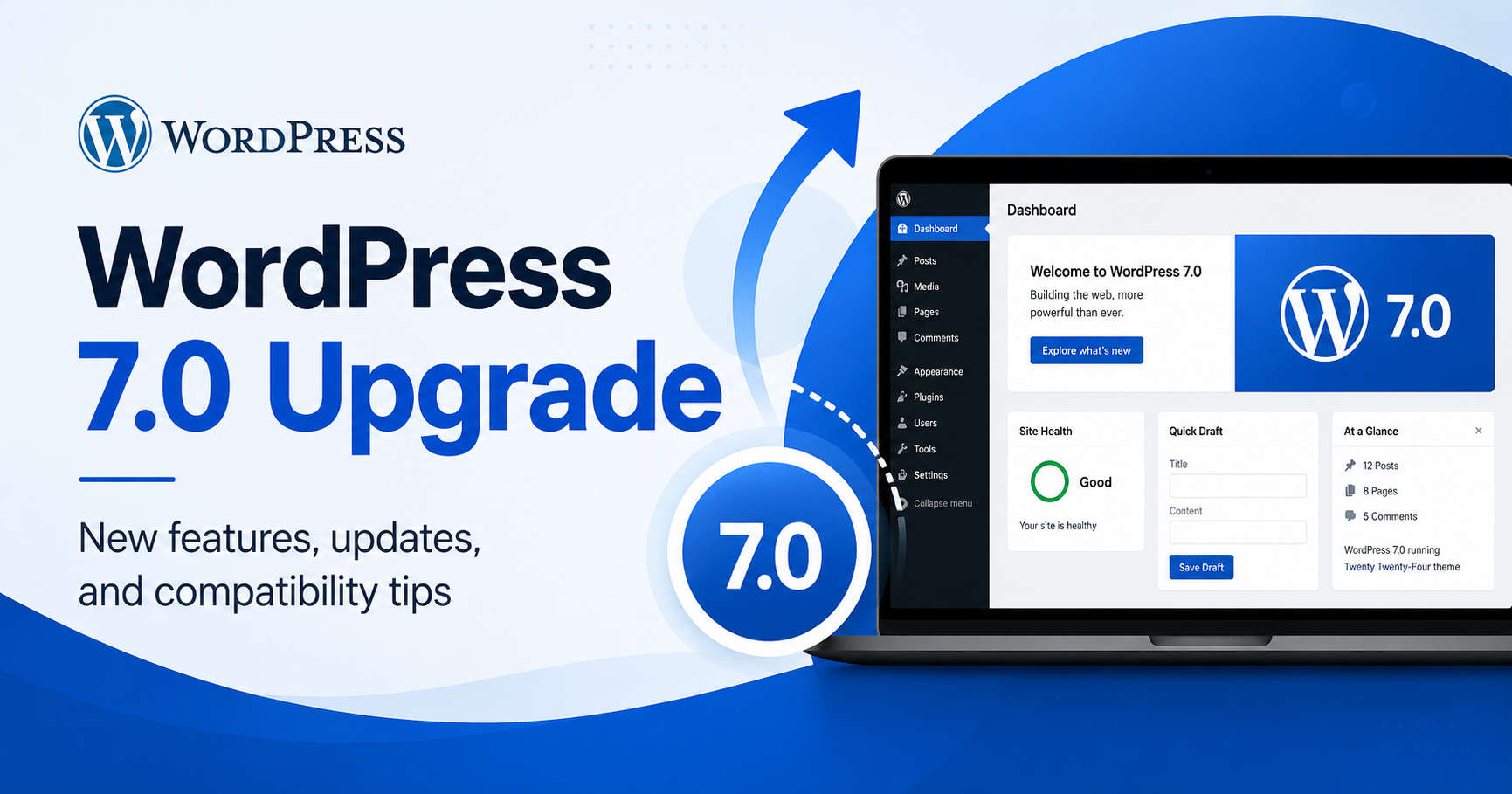
WordPress 7.0 also introduces a refreshed dashboard experience. The admin area has been modernized with a cleaner design, updated colors, smoother transitions, and a more polished interface.
This is important because the WordPress dashboard is where most site owners spend their time. A cleaner dashboard can make everyday tasks feel easier, especially for clients or non-technical users who may only log in occasionally to update pages, publish blog posts, or manage media.
The new dashboard design helps WordPress feel more current while still keeping the familiar structure that longtime users know.
Easier Access with the Command Palette
The Command Palette continues to become more useful in WordPress 7.0. Users can access common tools and actions from the dashboard with a quick shortcut, helping speed up navigation and reduce the number of clicks needed to get work done.
This feature started becoming more important in previous releases, including WordPress 6.9, and WordPress 7.0 makes it feel more central to the admin experience.
For power users, agencies, and developers managing multiple sites, faster navigation can save time. For everyday users, it can make WordPress feel easier to control once they become comfortable with it.
Better Font Management
WordPress 7.0 includes a dedicated font management page, making it easier to manage, upload, and install fonts from one place.
This is a practical improvement for business websites that need consistent branding. Instead of relying only on theme settings or custom code, WordPress continues moving toward giving users more design control inside the admin area.
This update can be especially helpful for sites that use block themes, hybrid themes, or classic themes that need better font control without adding unnecessary plugins.
Improved Revisions for Content Editing
WordPress revisions have always been useful, but WordPress 7.0 improves the experience with visual revisions. This makes it easier to compare changes between versions of a page or post.
For content teams, this is a big improvement. Instead of trying to figure out what changed by reading text differences alone, users can visually review updates and restore the version they need.
This builds on the collaboration improvements introduced in WordPress 6.9 and makes WordPress more useful for teams that review and revise content before publishing.
New Design and Block Editing Tools
WordPress 7.0 continues improving the block editor and site editing experience. The update includes new and improved blocks, better responsive controls, more design flexibility, and better tools for customizing layouts.
Some of the design-focused improvements include:
- New block options for headings, breadcrumbs, galleries, icons, and navigation
- Lightbox slideshow support for galleries
- Better mobile navigation overlay customization
- Responsive controls that allow blocks to be hidden or shown based on device type
- Custom CSS support at the block level
These updates are useful for site owners who want more control without installing a large number of extra plugins. They also help designers and developers create more flexible page layouts directly inside WordPress.
Better Mobile Layout Control
Responsive design is no longer optional. Most websites get a large percentage of their traffic from phones and tablets, so WordPress 7.0’s responsive editing improvements are a welcome addition.
The ability to control block visibility by device can make it easier to customize content for desktop, tablet, and mobile visitors. For example, a site owner might show a larger call-to-action section on desktop but use a shorter version on mobile.
This kind of control helps websites look better across different screen sizes and can improve the user experience for mobile visitors.
Developer Improvements in WordPress 7.0
WordPress 7.0 also includes several important developer updates. These include improvements to the Interactivity API, Block Bindings API, DataViews, DataForms, PHP-only block registration, and Site Editor routing.
For custom plugin and theme developers, these updates provide more ways to build advanced features while staying closer to WordPress Core standards.
One important technical change is that WordPress 7.0 raises the minimum PHP version requirement to PHP 7.4. Most modern hosting accounts should already support newer PHP versions, but website owners should still check their hosting environment before updating.
Should You Update to WordPress 7.0?
For most websites, updating to WordPress 7.0 will be important, but it should still be done carefully. Major WordPress updates can affect themes, plugins, custom code, and older hosting environments.
Before updating, it is a good idea to:
- Create a full backup of your website files and database
- Update plugins and themes first
- Test the update on a staging site if possible
- Check PHP compatibility with your hosting provider
- Review important pages, forms, checkout pages, and custom features after updating
If your site uses a custom theme, older plugins, WooCommerce, membership tools, learning management plugins, or custom PHP code, testing the update first is especially important.
What WordPress 7.0 Means for Website Owners
The WordPress 7 update shows where the platform is headed. WordPress is becoming more modern, more flexible, and more prepared for AI-powered workflows.
For website owners, the biggest benefits are a cleaner admin experience, better editing tools, improved design control, and a foundation for smarter content workflows.
For agencies and developers, WordPress 7.0 offers new tools for building custom features, improving plugin integrations, and preparing for the next phase of WordPress development.
Final Thoughts on the WordPress 7 Update
WordPress 7.0 is a major step forward. The last major update, WordPress 6.9, improved collaboration and introduced important building blocks for smarter workflows. WordPress 7.0 expands on that progress with AI integration, a modernized dashboard, improved revisions, better design tools, and stronger developer features.
As with any major WordPress update, site owners should update carefully, test important features, and make sure their hosting, plugins, and themes are compatible. But overall, WordPress 7.0 is a strong release that points toward a more powerful and intelligent future for the platform.
For businesses that rely on WordPress, now is a good time to review your website, clean up old plugins, test your theme, and make sure your site is ready for the next generation of WordPress.
WordPress 7 Update FAQ
Will WordPress 7 work with PHP 7?
WordPress 7.0 requires PHP 7.4 or higher. If your hosting account is still running PHP 7.0, 7.1, 7.2, or 7.3, you should not expect WordPress 7.0 to run correctly.
This is one of the most important things to check before updating. Many older WordPress websites are still running outdated PHP versions because the site was built years ago and the hosting settings were never updated.
Before installing WordPress 7.0, log into your hosting control panel or contact your hosting company and confirm that your site is running PHP 7.4 or newer. For best performance and security, PHP 8.x is usually the better choice when your theme and plugins support it.
What happens if my site is still on PHP 7.2 or PHP 7.3?
If your site is running PHP 7.2 or PHP 7.3, WordPress 7.0 is not supported. Sites on those older PHP versions may remain on the WordPress 6.9 branch instead of moving forward to WordPress 7.0.
That does not mean you should ignore the issue. PHP 7.2 and 7.3 are outdated, and many modern plugins and themes are moving away from older PHP support. The better long-term solution is to update PHP, test the website, and then update WordPress once the site is ready.
Does WordPress 7 work with older versions of Divi?
WordPress 7 may work with Divi, but older versions of Divi can be a risk. Divi requires PHP 7.4 or higher, and PHP 8.0 or higher is generally recommended for better performance.
If your website uses Divi, you should update Divi before updating WordPress, especially if the site is running an older Divi version. Older versions of Divi may have problems with the builder, custom modules, shortcodes, responsive settings, or theme options after a major WordPress update.
The safest approach is to test the WordPress 7 update on a staging copy of the website first. Check the homepage, custom layouts, global modules, contact forms, WooCommerce pages, mobile menu, and any custom CSS or PHP changes.
Does WordPress 7 work with older versions of Elementor?
WordPress 7 should work with current versions of Elementor that meet the published system requirements, but older Elementor versions may not be fully compatible.
Elementor requires WordPress 6.5 or higher and PHP 7.4 or higher. Elementor also recommends using the latest version of WordPress. If your Elementor version is old, update Elementor and Elementor Pro before updating WordPress.
After updating, check your most important Elementor pages carefully. Look for layout shifts, missing styles, broken widgets, form issues, popup problems, header and footer display problems, and mobile spacing changes.
Should I update Elementor or Divi before updating WordPress?
In most cases, yes. It is usually better to update your theme and major plugins before installing a major WordPress update.
For sites using page builders like Divi or Elementor, the update order usually looks like this:
- Back up the website
- Update PHP if needed
- Update plugins
- Update the theme or page builder
- Test the site
- Update WordPress
- Test the site again
This helps reduce the chance of running WordPress 7 with outdated builder files that were designed for older versions of WordPress.
Can WordPress 7 break my website?
Yes, any major WordPress update can cause problems if your website uses outdated plugins, an old theme, custom code, or an unsupported PHP version.
- Common WordPress update issues can include:
- White screen errors
- Broken layouts
- Page builder not loading
- Plugin conflicts
- Contact forms not sending
- WooCommerce checkout issues
- PHP fatal errors
- Admin dashboard errors
- Missing CSS or JavaScript files
- Mobile menu problems
- Most of these problems are avoidable with proper testing, backups, and updates before installing WordPress 7.0 on a live site.
What should I check before updating to WordPress 7?
Before updating to WordPress 7, review the technical health of your website. At a minimum, you should check your PHP version, WordPress theme version, plugin versions, database version, and backup system.
You should also confirm that your most important plugins have been updated recently. If a plugin has not been updated in several years, it may not be compatible with WordPress 7 or modern PHP versions.
This is especially important for websites that use WooCommerce, membership plugins, learning management systems, custom post types, form builders, security plugins, caching plugins, or custom-developed features.
Should I update WordPress 7 on a live website?
For a small blog or simple brochure website, updating directly on the live site may be fine if you have a full backup. For a business website, e-commerce store, membership site, or client website, it is better to test the update on a staging site first.
A staging site is a private copy of your website where you can test updates before applying them to the live version. This gives you a chance to find problems before visitors or customers see them.
What should I test after updating to WordPress 7?
After updating to WordPress 7, test the front end and admin area of your website.
Check the homepage, main service pages, blog posts, menus, mobile layout, forms, search feature, login page, checkout process, thank-you pages, and any custom functionality.
If you use Divi or Elementor, open the builder and confirm that pages can still be edited. If you use WooCommerce, run a test order if possible. If you use contact forms, send a test message and confirm that it arrives.
What if my theme or plugin has not been updated in years?
If a theme or plugin has not been updated in years, it may become a problem with WordPress 7. Even if it still works today, it may rely on older WordPress functions, outdated PHP code, or old JavaScript libraries.
Before updating, look for a newer version, a replacement plugin, or a developer who can review the code. Running outdated plugins can create both compatibility problems and security risks.
Is WordPress 7 worth updating to?
Yes, WordPress 7 is an important update, but it should be handled carefully. The update adds new features, better editing tools, improved design options, developer improvements, and stronger support for future AI-powered workflows.
However, the best time to update is when your website is ready. Make sure your hosting, PHP version, theme, plugins, and backups are in good shape first. A careful update process is much safer than clicking update and hoping everything works.