
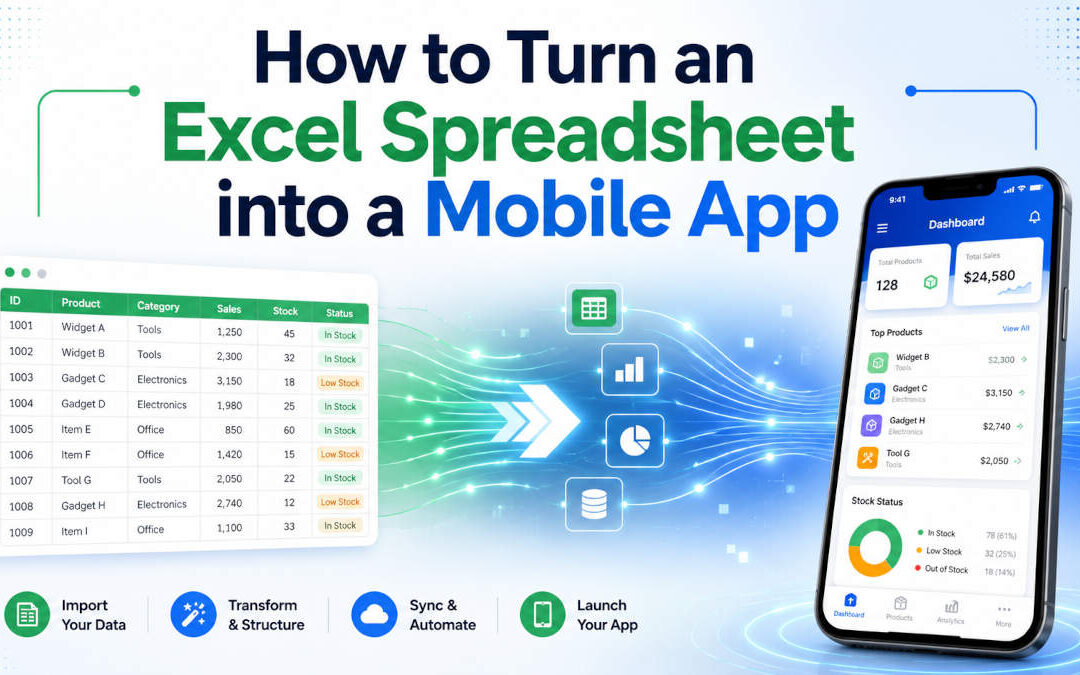
Many businesses rely on Excel spreadsheets to manage customers, inventory, inspections, service requests, estimates, schedules, and other important information. Excel is flexible, familiar, and easy to customize, which makes it an excellent tool for getting a new process started.
However, spreadsheets often become difficult to manage as a business grows.
Employees may accidentally overwrite formulas, use outdated copies, enter information incorrectly, or forget to upload the latest version. Accessing a large spreadsheet from a phone can also be frustrating, especially when employees are working in the field.
Turning an Excel spreadsheet into a mobile app can make the information easier to access, update, organize, and share. Depending on the complexity of the spreadsheet, this can be done using a no-code platform, a low-code development tool, or a completely custom mobile application.
Why Convert an Excel Spreadsheet into an App?
Excel works well when one or two people are managing a relatively small amount of information. Problems often begin when multiple employees need to use the same spreadsheet or when the spreadsheet becomes part of a larger business process.
A mobile app can provide a cleaner and more controlled way to work with the same information.
Some of the most common reasons to convert a spreadsheet into an app include:
- Allowing employees to enter information from phones or tablets
- Preventing users from accidentally changing formulas
- Providing different access levels for employees and managers
- Uploading photos, documents, signatures, or GPS locations
- Improving data validation and reducing entry errors
- Creating automated notifications and approval processes
- Allowing multiple people to update information at the same time
- Connecting spreadsheet data with accounting, CRM, or inventory systems
- Generating reports and dashboards
- Supporting offline data entry for field employees
Instead of asking users to navigate dozens of spreadsheet columns, an app can present only the information they need for a particular task.
Start by Understanding What the Spreadsheet Does
Before building an app, it is important to understand how the spreadsheet is currently being used.
Some spreadsheets are little more than contact lists. Others contain complicated formulas, macros, lookup tables, conditional formatting, and multiple interconnected worksheets.
The development process should begin by identifying:
- What information is stored in the spreadsheet
- Who enters or updates the information
- Which formulas and calculations are important
- Which users should be able to view or edit each field
- Whether users need to upload files or photos
- Whether the system needs approval workflows
- Which reports need to be generated
- Whether the app needs to work without an internet connection
- Whether the data must connect with another business system
This planning stage is important because the goal is not always to recreate the spreadsheet exactly. In many cases, the better solution is to redesign the workflow so that the app is easier to use than the original spreadsheet.
Clean Up the Spreadsheet Data
A spreadsheet that has been used for several years may contain duplicate records, inconsistent formatting, empty columns, outdated information, and values that mean different things to different users.
Before importing the information into an app, the data should be reviewed and cleaned.
For example, one employee may enter a customer status as “Active,” while another enters “Current” or simply types “A.” A mobile app should normally use a standardized dropdown menu instead of allowing everyone to enter a different version of the same value.
Other common data-cleaning tasks include:
- Removing duplicate records
- Standardizing dates and phone numbers
- Correcting inconsistent category names
- Separating combined information into individual fields
- Identifying required fields
- Removing unused columns
- Verifying formulas and calculations
- Creating unique identification numbers for records
Cleaning the data before development can prevent many problems later.
Understand That Excel Is Not a Database
An Excel workbook can store large amounts of information, but it is not designed to function as a multiuser application database.
In most production mobile apps, the spreadsheet data is imported into a database. The mobile app then communicates with that database through an API or application backend.
A typical system might include:
- A mobile app used by employees or customers
- A secure API that processes requests
- A database that stores the records
- A web-based administrative dashboard
- Integrations with other business systems
The original Excel file may still be used for exporting reports, importing batches of records, or providing information to employees who prefer spreadsheets. However, it usually should not remain the primary data-storage system once several people are using the app.
Option 1: Use a No-Code App Builder
No-code platforms can turn spreadsheet data into a basic application without requiring traditional software development.
These platforms often allow users to connect an Excel workbook, Google Sheet, or cloud-based data source and automatically create screens for viewing and editing records.
A no-code solution may work well for:
- Internal contact directories
- Basic inventory lists
- Simple inspection forms
- Task-tracking systems
- Event registration lists
- Small customer databases
- Basic approval workflows
- Simple field data collection
The primary advantage is speed. A basic internal app may be created much faster than a custom application.
However, no-code platforms also have limitations. Custom designs, advanced business rules, complex integrations, large amounts of data, offline access, and specialized security requirements can be difficult or expensive to implement.
Businesses should also review the platform’s pricing carefully. Some services charge by the user, app, automation, or number of records. A solution that is inexpensive for five employees may become costly when used by hundreds of employees or customers.
Option 2: Use a Low-Code Development Platform
Low-code development platforms provide more flexibility than basic no-code tools while still reducing the amount of programming required.
A low-code platform may provide prebuilt components for:
- Login and user management
- Forms and data entry
- Database connections
- Workflow automation
- Push notifications
- Reporting dashboards
- File uploads
- API integrations
- Mobile deployment
Low-code development can be a good option when a business needs something more advanced than a simple spreadsheet app but does not require every part of the system to be developed from scratch.
Some custom programming may still be necessary, particularly when the application needs to connect with older software, perform specialized calculations, or follow complicated business rules.
Option 3: Build a Custom Mobile App
A custom mobile app provides the greatest level of control over the user experience, features, integrations, security, and long-term development roadmap.
The application can be developed specifically around the company’s workflow instead of forcing the workflow to fit within the limitations of a third-party app builder.
A custom solution may be appropriate when the app requires:
- A branded customer-facing experience
- Complicated calculations or pricing rules
- Advanced employee permissions
- Integration with existing business software
- Payment processing
- GPS tracking or mapping
- Photo and video uploads
- Digital signatures
- Push notifications
- Offline operation
- Large amounts of data
- Specialized security or compliance features
- Publication in the Apple App Store or Google Play Store
Custom development requires a larger initial investment, but it may provide better long-term flexibility and ownership.
The app can be built as a native iOS and Android application or with a cross-platform framework that shares much of the same code between devices.
Recreate Excel Formulas as Application Logic
Many business spreadsheets contain formulas that calculate prices, commissions, labor hours, material requirements, taxes, inventory totals, or project estimates.
These formulas must be identified and recreated within the application.
For example, a construction estimating spreadsheet might calculate a project total based on:
- Square footage
- Material type
- Labor rate
- Number of workers
- Equipment charges
- Travel distance
- Taxes
- Discounts
In a mobile app, users could enter the required information through a series of simple screens. The app would perform the calculations automatically and display the final estimate without exposing the underlying formulas.
Moving formulas into the application also prevents employees from accidentally deleting or changing them.
Design the App Around User Tasks
A spreadsheet is organized into rows, columns, and worksheets. A mobile app should instead be organized around what users need to accomplish.
For example, an employee might open the app and see options such as:
- Create a new inspection
- View assigned jobs
- Update a customer record
- Upload project photos
- Submit an expense
- Request manager approval
- Generate a report
Each screen can display only the fields needed for that specific task.
This is one of the biggest advantages of converting a spreadsheet into an app. The information may remain similar, but the experience becomes much easier for employees, customers, and managers.
Add Data Validation
Spreadsheets often contain inconsistent information because users can type almost anything into a cell.
A mobile app can improve data quality by using:
- Required fields
- Dropdown menus
- Checkboxes
- Date selectors
- Address lookup
- Numeric limits
- Email validation
- Phone-number formatting
- Conditional questions
- Automatic calculations
For example, an inspection app can require employees to complete every mandatory field before submitting the inspection. It can also display additional questions only when a particular problem is identified.
Better validation results in better reports and more reliable business information.
Set Up User Accounts and Permissions
Not every user should have access to every part of the application.
A field employee may need to view assigned jobs and submit forms, while a manager may need to review all jobs, approve submissions, change pricing, and generate reports.
Common user roles might include:
- Administrator
- Manager
- Employee
- Contractor
- Customer
- Read-only user
Permissions can control which records users can see, which fields they can change, and which administrative functions they can access.
This is much more secure than emailing spreadsheet copies between employees.
Consider Offline Access
Some employees need to use mobile apps in warehouses, construction sites, rural areas, basements, or other locations with poor internet access.
An offline-capable app can store information temporarily on the device. When an internet connection becomes available, the app synchronizes the information with the main database.
Offline synchronization must be planned carefully. The system needs rules for handling situations where multiple users change the same record while they are offline.
Not every application needs offline support, but it is an important requirement for many field-service businesses.
Add Photos, Signatures, and Location Information
Mobile devices can collect information that is difficult to manage in a spreadsheet.
An app can allow users to:
- Take and upload photos
- Scan barcodes or QR codes
- Capture customer signatures
- Record GPS coordinates
- Attach invoices or documents
- Record audio notes
- Scan identification cards
- Add timestamps automatically
For example, a property inspection app could record the date, time, location, employee, photographs, notes, and customer signature for every inspection.
The spreadsheet may still contain a link to the related files, but the app provides a much better process for collecting and organizing them.
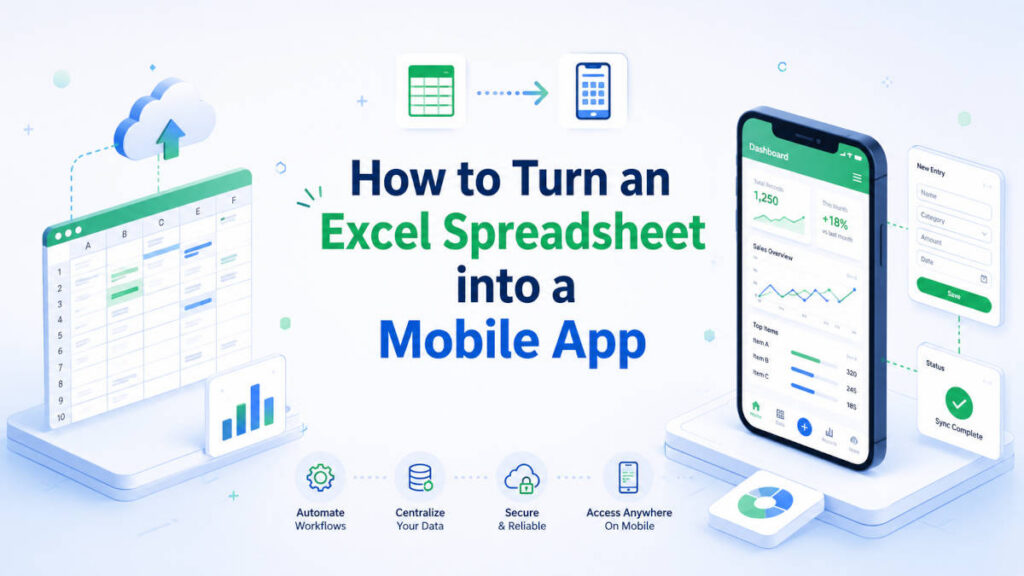
Connect the App with Other Systems
Spreadsheet-based processes often require employees to copy information manually between several systems.
A mobile app can use API integrations to exchange data with:
- Customer relationship management systems
- Accounting platforms
- Inventory-management software
- Payment gateways
- Email-marketing platforms
- Scheduling systems
- Mapping services
- Cloud-storage providers
- E-commerce websites
- Enterprise resource planning systems
For example, a sales representative could create a new customer in the mobile app. The customer record could then be added automatically to the company’s CRM and accounting system.
Automating these connections can save time and reduce data-entry mistakes.
Create an Administrative Dashboard
Even when the primary goal is to build a mobile app, the company may also need a web-based dashboard.
An administrative dashboard can allow managers to:
- Search and edit records
- Manage user accounts
- Assign work
- Review submissions
- Approve or reject requests
- View charts and reports
- Export information to Excel
- Import batches of records
- Configure categories and pricing
- Monitor app activity
Mobile apps are convenient for employees in the field, while desktop dashboards are often better for management and reporting tasks.
Test the App with Real Users
Before launching the app to the entire company, it should be tested with a small group of employees who currently use the spreadsheet.
These users can help identify missing fields, confusing screens, incorrect calculations, and workflow problems.
Testing should include:
- Different phone and tablet sizes
- Slow or unreliable internet connections
- Incorrect data entries
- Large file uploads
- Multiple users updating information
- User permission levels
- Spreadsheet imports and exports
- Notifications and approval workflows
- Integration failures
- Offline synchronization
Feedback from real users is especially important because the people who created the spreadsheet may use it differently from employees in the field.
Import the Existing Spreadsheet Records
Once the application and database are ready, the existing Excel data can be imported.
The import process may include:
- Creating a backup of the original spreadsheet
- Cleaning and standardizing the data
- Mapping spreadsheet columns to database fields
- Testing a small sample import
- Reviewing the imported records
- Importing the remaining information
- Comparing totals and calculations
- Archiving the original workbook
For complicated systems, the import may need to combine information from several worksheets or spreadsheet files.
The application should also include a process for handling future spreadsheet imports if the business regularly receives data in Excel format.
Can You Keep Using Excel After Building the App?
Yes. Converting a spreadsheet into an app does not necessarily mean eliminating Excel completely.
Many businesses continue using Excel for:
- Exporting reports
- Creating charts
- Performing specialized analysis
- Sharing information with outside vendors
- Importing large batches of records
- Maintaining backup copies
- Creating accounting or management reports
The difference is that the spreadsheet is no longer responsible for controlling the entire business process.
The app becomes the main interface for collecting and managing information, while Excel remains available when it is the best tool for reporting or analysis.
How Much Does It Cost to Turn a Spreadsheet into an App?
The cost depends heavily on the complexity of the spreadsheet and the features required.
A simple internal app using a no-code platform may require relatively little development. A custom system with user accounts, offline access, integrations, reporting, payments, notifications, and administrative tools will require more planning and development.
Important cost factors include:
- Number of screens and forms
- Complexity of spreadsheet formulas
- Number of user roles
- Amount of existing data
- Mobile platforms supported
- Offline requirements
- Third-party integrations
- Administrative dashboard features
- Security requirements
- App Store and Google Play deployment
- Ongoing hosting and support
The best way to estimate the project is to review the existing spreadsheet and document how employees currently use it.
Is Every Spreadsheet a Good Candidate for an App?
Not every spreadsheet needs to become a mobile app.
A small workbook used occasionally by one person may work perfectly well in Excel. An app becomes more valuable when the spreadsheet is being used by multiple people, supports an important business process, or creates frequent errors and delays.
Signs that it may be time to build an app include:
- Employees are emailing different versions of the same file
- Formulas are frequently deleted or changed
- The spreadsheet is difficult to use on a phone
- Several people need to edit information at the same time
- Managers cannot easily determine which information is current
- Employees repeatedly copy data into other systems
- The workbook has become too complicated for new employees
- The business needs photos, signatures, GPS, or notifications
- Customers need access to part of the information
- The spreadsheet contains sensitive information that needs stronger access controls
Turn Your Business Spreadsheet into a Mobile App
An Excel spreadsheet can be an excellent starting point for a mobile application. It already contains many of the fields, formulas, categories, and business rules required to understand the workflow.
The next step is to transform that information into a secure, reliable, and user-friendly system.
Code Team Blue develops custom web and mobile applications for businesses that have outgrown spreadsheets and manual processes. We can review your existing Excel workbook, identify the best development approach, import your data, recreate your calculations, and connect the new application with your existing software.
Whether you need a simple internal data-entry app or a complete customer-facing mobile platform, the project can be designed around the way your business actually operates.
Contact Code Team Blue to discuss turning your Excel spreadsheet into a custom mobile or web application.
Frequently Asked Questions
Can an Excel spreadsheet automatically become a mobile app?
Some no-code platforms can generate a basic app from spreadsheet data. However, formulas, macros, permissions, integrations, and complicated workflows may require additional configuration or custom development.
Can the app update the original Excel file?
Yes. An app can be designed to import from or export to Excel. In most cases, however, the application should store its primary information in a database instead of writing directly to a shared spreadsheet.
Can several employees use the app at the same time?
Yes. A database-backed application can allow multiple employees to view and update information simultaneously. Permissions can determine which records each employee can access.
Can an Excel macro be converted into an app?
The workflow and calculations performed by the macro can usually be recreated as application logic. The macro itself will generally need to be reviewed and rewritten for the new system.
Can the app work on both iPhone and Android devices?
Yes. The application can be developed separately for iOS and Android or created with a cross-platform framework that supports both platforms.
Can the app work without internet access?
Yes, but offline operation must be included in the project requirements. The app will need to store information on the device and synchronize it when an internet connection becomes available.
Can users still export reports to Excel?
Yes. Reports, customer lists, inventory records, inspection results, and other information can be exported as Excel or CSV files.
Is a no-code platform better than custom development?
It depends on the project. No-code platforms can work well for simple internal applications. Custom development is usually more appropriate when the app requires advanced integrations, custom branding, complicated workflows, offline features, or long-term flexibility.
Looking for Custom Software Development?
