
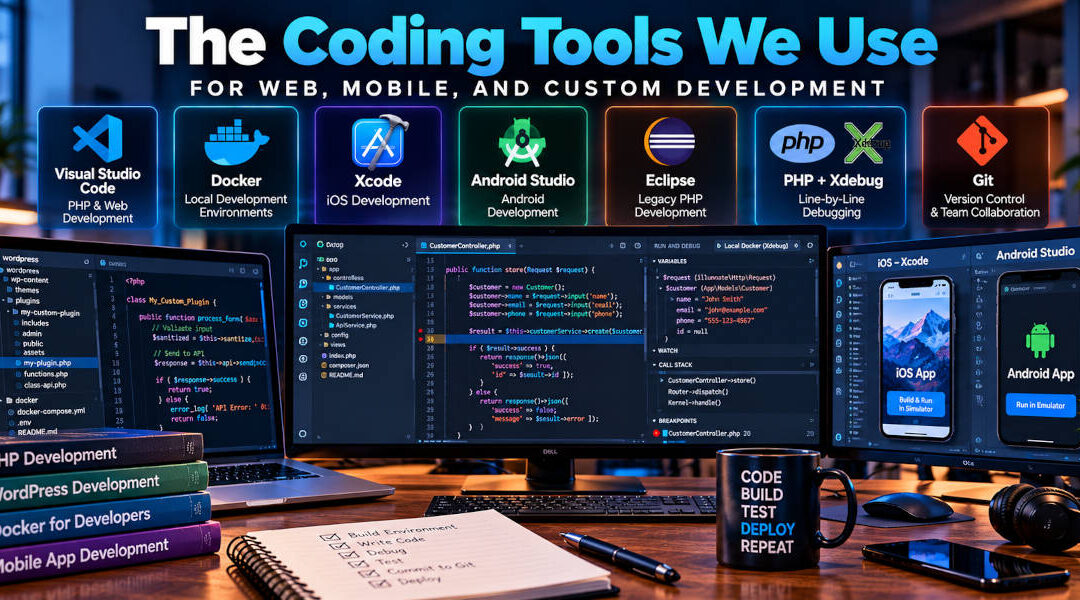
Modern software development involves much more than opening a text editor and writing code. A professional development environment includes source-code editors, local servers, databases, debuggers, mobile-device simulators, version control, testing tools, and deployment systems.
At Code Team Blue, the tools we use have changed considerably over the years. We have been developing web applications, WordPress websites, custom PHP systems, APIs, and mobile applications for more than 20 years. During that time, we have worked with older development environments such as Eclipse as well as current tools including Visual Studio Code, Xcode, Android Studio, Docker, Xdebug, and Git.
The exact development stack depends on the project. We would not use the same environment for a custom PHP application that we would use for a native iPhone app. However, many of the underlying principles remain the same: developers need a controlled environment where they can write code, test changes, debug problems, track revisions, and collaborate without experimenting directly on a production website.
Here is an overview of some of the software development tools we use and how they fit into our development process.
Visual Studio Code for PHP and Web Development
For PHP and general web development, one of our primary tools is Microsoft’s Visual Studio Code, commonly called VS Code.
It is important not to confuse Visual Studio Code with Apple’s Xcode. Visual Studio Code is Microsoft’s cross-platform source-code editor, while Xcode is Apple’s development environment for iOS, macOS, and other Apple platforms.
VS Code works particularly well for PHP development because it provides a relatively lightweight editor while allowing developers to add the extensions needed for a specific project. Microsoft’s PHP support includes syntax highlighting, bracket matching, code completion, snippets, linting, and support for PHP debugging through extensions. Visual Studio Code
Visual Studio Code PHP Documentation
For the kinds of projects we work on, VS Code may be used for PHP, HTML, CSS, JavaScript, SQL, configuration files, Docker files, API development, and WordPress code within the same project.
This is particularly useful when working on a custom business application where the project may contain several different technologies.
A single application could contain PHP on the backend, JavaScript on the frontend, MySQL database scripts, JSON configuration files, Docker configuration, and API documentation. VS Code allows us to work with all of those components from one development environment.
For businesses that need something beyond an off-the-shelf website, Code Team Blue provides custom programming and web application development using PHP, JavaScript, databases, APIs, WordPress, and other technologies.
Using Docker for Local Development Environments
Docker has become another important part of our development workflow.
One of the biggest challenges in web development has always been reproducing the production server environment on a developer’s computer.
Imagine inheriting a custom PHP application that requires PHP 7.4, MySQL 5.7, Apache, several PHP extensions, and a particular configuration.
Meanwhile, another project may use PHP 8.3, MariaDB, NGINX, Redis, and completely different libraries.
Installing every possible version directly on one development computer quickly becomes messy.
Docker solves much of this problem by allowing developers to create isolated containers containing the software required for each project.
Docker Desktop is available for Mac, Windows, and Linux and provides the tools needed to build and run containerized applications locally. Docker also includes Docker Compose, which is particularly useful when an application needs several services operating together. Docker Documentation
A local PHP development environment might contain one container running PHP and Apache, another running MySQL, and perhaps another providing Redis or some additional service.
The developer can start the complete environment when working on the project and shut it down afterward.
Docker for Custom PHP Development
Docker is particularly useful when working with custom PHP applications.
We occasionally work on applications that were originally developed many years ago and depend on older versions of PHP or MySQL.
That can create a difficult situation.
You may not want to downgrade your entire development computer just to work on one legacy application. At the same time, immediately upgrading the application to the latest PHP version may create hundreds of compatibility issues.
With Docker, we can create a local environment much closer to the original server.
That allows us to get the application running first.
Once we have a functioning development environment, we can begin identifying obsolete code, testing upgrades, replacing deprecated functions, and determining what will be required to move the application to modern infrastructure.
For legacy applications, this can be dramatically safer than attempting changes directly on the production server.
Docker for WordPress Development
We also use local development environments for WordPress.
A WordPress installation involves more than PHP files. It normally requires PHP, a database server, a web server, and the WordPress database itself.
Docker makes it possible to recreate those pieces locally.
A developer can copy a website’s files and database into a local environment and work on the site without affecting the production version.
This is particularly useful when developing or modifying custom plugins.
Suppose we are adding a substantial new feature to a client’s WordPress website. We do not want to write and test that functionality directly on the live website while customers are using it.
Instead, we can create a development copy, write the feature, test it, debug it, and then deploy the completed code after it has been reviewed.
This type of workflow is especially important for our custom WordPress plugin development projects, where the code may communicate with APIs, payment systems, databases, or other business software.
Why Local Development Environments Matter
Developing directly on a production server is risky.
A missing semicolon in PHP can break a page. A database query can modify the wrong records. A plugin update can create a conflict. A new API integration can behave differently than expected.
A local development environment gives developers a place to make mistakes safely.
That is important because software development involves experimentation.
We may test several approaches before deciding which implementation is best. We may intentionally produce an error while investigating a problem. We may need to inspect database values or temporarily add debugging information that customers should never see.
None of that should happen on the live production website if it can reasonably be avoided.
Local environments also make debugging significantly easier.
Xdebug: Debugging PHP Line by Line
One of the most useful PHP development tools is Xdebug.
Years ago, when we used Eclipse more heavily for PHP development, Xdebug was one of the tools that made the IDE particularly useful. We continue to use the same basic debugging approach with modern development environments such as VS Code.
Xdebug allows a developer to perform step debugging.
Instead of inserting echo, print_r(), or var_dump() statements throughout an application and repeatedly reloading the page, we can stop the PHP application at a specific line of code.
Xdebug’s official documentation describes step debugging as the ability to interactively walk through code while inspecting the application’s control flow and data structures. It supports IDEs including Visual Studio Code. Xdebug
Xdebug Step Debugging Documentation
This is one of the areas where a proper local development environment can save a tremendous amount of time.
What Line-by-Line Debugging Actually Looks Like
Suppose a PHP application contains a function that calculates a customer’s price, but the final result is wrong.
Without a debugger, a developer might start adding temporary output throughout the function:
echo $customer_type;
echo $base_price;
echo $discount;
echo $final_price;
That can work, but it becomes inefficient in complicated applications.
With Xdebug, we can place a breakpoint on the first relevant line.
The application runs normally until PHP reaches that breakpoint.
At that point, execution stops.
We can inspect the values of the variables.
Then we can execute the next line.
And the next.
And the next.
If the code enters another function, we can step into that function and watch what happens there.
If a loop executes ten times, we can watch the value change during each iteration.
That gives us a much clearer view of what the application is actually doing.
Debugging Inside Docker
Docker and Xdebug work especially well together.
We can run PHP inside a Docker container and connect the Xdebug process inside that container to VS Code on the developer’s computer.
That means the PHP application can run in an environment closely matching the production server while still providing modern debugging features.
We can place breakpoints inside our local source code and then open the application in a browser.
When the browser request reaches the breakpoint, VS Code stops execution and lets us examine the application.
This is useful for debugging custom PHP systems and WordPress code.
For example, we might debug a custom WordPress plugin by placing a breakpoint inside the function that handles an API request. We submit the form through the browser, WordPress begins processing the request, and the debugger stops on the exact line we want to inspect.
We can then examine the values received from WordPress, the API request being constructed, the response returned by the external service, and what the plugin does with that response.
That is substantially more useful than blindly guessing why something went wrong.
Xdebug Does More Than Breakpoints
Step debugging is probably the Xdebug feature we use most often, but it is not the only one.
Xdebug also provides capabilities for profiling, function tracing, development diagnostics, and code coverage. Xdebug
Profiling can help identify portions of an application that consume excessive processing time.
Function tracing can help show the sequence of functions called during a request.
These tools can be useful when investigating complicated legacy applications where the original developers are no longer available and documentation is limited.
Instead of trying to understand thousands of lines of PHP entirely by reading them, debugging and tracing can show us how the application actually behaves.
Xcode for iOS Development
When we move from PHP and web applications to native Apple development, our primary environment changes completely.
For iOS applications, we use Apple’s Xcode.
Xcode is Apple’s integrated development environment for building applications for iPhone, iPad, Mac, Apple Watch, Apple TV, and other Apple platforms.
Apple describes Xcode as the environment used to build, test, optimize, and submit applications to the App Store. It includes a source-code editor, debugger, source-control integration, simulators, performance tools, and increasingly sophisticated AI coding capabilities. Apple Developer
Apple Xcode Developer Documentation
For our native iOS development work, that means Xcode can handle much of the development lifecycle.
We can write Swift code, design and preview interfaces, launch the application in an iPhone simulator, connect physical iPhones and iPads, set breakpoints, examine memory and performance, build the application, and prepare releases.
Debugging iPhone Apps With Xcode
The debugging concepts are similar to what we do with PHP and Xdebug.
A developer can place a breakpoint on a line of Swift code and run the application.
When the application reaches that line, execution stops.
We can inspect variables and application state before proceeding line by line.
This becomes extremely useful when dealing with problems that happen only during a particular workflow.
Suppose an app works correctly until a customer takes a photo and uploads it.
We can stop execution before the upload request, inspect the image data, inspect the API request, step through the response handling, and determine exactly where things stop behaving as expected.
Xcode’s Simulator also allows us to test applications on simulated Apple devices without requiring a separate physical device for every screen size and hardware generation. Apple also includes Instruments for profiling and investigating application performance and resource consumption. Apple Developer
For businesses considering an iPhone or Android application, Code Team Blue provides custom mobile app development covering native iOS, native Android, cross-platform development, testing, deployment, and ongoing support.
Android Studio for Native Android Development
For native Android applications, we use Google’s Android Studio.
Android Studio is Google’s official IDE for Android app development. It is based on IntelliJ IDEA and provides the tools needed to write, build, test, debug, and package Android applications. Android Developers
Android Studio Official Documentation
Current Android Studio tools include support for Kotlin, Java, C++, Jetpack Compose, emulators, device testing, debugging, Gradle builds, performance analysis, GitHub integration, and automated testing. Google has also integrated Gemini-based AI development tools directly into Android Studio. Android Developers
This makes Android Studio the Android counterpart to Xcode in much of our mobile development workflow.
We can write the application, launch it in an Android emulator, connect physical devices, inspect logs, set breakpoints, test user interfaces, and create production builds from the same environment.
Android Emulators and Device Testing
Android development has an additional challenge because of the enormous range of Android hardware.
Apple controls a relatively limited number of iPhone and iPad models.
Android runs on devices from many manufacturers, with different screen sizes, processors, memory configurations, and versions of the operating system.
Android Studio’s emulator helps developers test multiple virtual device configurations without owning every possible Android phone.
Google also provides extensive testing and linting tools for identifying compatibility, performance, and usability problems. Android Developers
However, we still believe physical-device testing is important for many applications.
Emulators are excellent development tools, but there are situations involving cameras, Bluetooth, GPS, cellular networks, battery behavior, and other hardware where testing on a real device remains valuable.
Eclipse: One of Our Earlier PHP Development Environments
Before Visual Studio Code became one of our preferred PHP development tools, we spent a lot of time working in Eclipse.
Eclipse has been around for a long time and remains available today.
The Eclipse PHP Development Tools project, generally called PDT, provides PHP-specific IDE features including syntax checking, code navigation, refactoring, PHPUnit support, Git integration, and debugging through Xdebug or Zend Debugger. Eclipse Foundation
At the time, Eclipse gave us something substantially more powerful than a basic PHP text editor.
We could organize large projects, navigate through classes and functions, integrate source control, and—most importantly—connect Xdebug and step through PHP code.
That line-by-line debugging capability was a major upgrade from the way PHP development had traditionally been done.
Why We Moved Away From Eclipse for Most PHP Work
Eclipse is still a capable IDE, and the PHP Development Tools project is still maintained.
Our workflow simply evolved.
Visual Studio Code is lighter, easier to customize, and fits well with many of the different technologies we now use on the same project.
A modern PHP project may involve Docker, JavaScript, APIs, JSON, Git, shell scripts, SQL, and AI coding tools in addition to PHP itself.
VS Code has become a convenient central environment for that type of mixed development.
That does not make Eclipse a bad tool.
It illustrates something we have seen repeatedly during more than two decades of software development: development tools change.
The important skill is not memorizing one IDE.
It is understanding programming, databases, debugging, version control, APIs, and software architecture well enough to move between tools as technology evolves.
Git and Version Control
Another tool that is fundamental to modern development is Git.
Git is a distributed version-control system.
In simple terms, Git keeps a history of changes to source code.
That sounds basic, but it solves several major problems.
Imagine two developers working on the same application.
One developer is modifying the payment code while another developer is updating the customer-management system.
Without version control, they could easily overwrite each other’s files or lose track of which version contains which changes.
With Git, each developer can work on their own changes and then merge those changes into the shared project.
Repositories Give Us a History of the Code
A Git repository contains more than the current version of the project.
It contains a history of commits.
A commit represents a recorded set of changes.
For example, a developer might make a commit labeled:
Fix customer invoice calculationAnother might be:
Add API authenticationAnd another:
Update app for new iOS releaseIf something goes wrong later, the team can inspect the history and see what changed.
That can be extremely helpful during debugging.
Instead of asking, “Why did this suddenly stop working?” we can look at the code changes and determine what was modified.
Git Makes Team Development Much Easier
Git becomes especially important when several developers are working on the same project.
Developers can create branches for individual features or fixes rather than modifying the main production code immediately.
A typical workflow might involve creating a feature branch, developing and testing the change, reviewing it, and then merging it into the main branch after it has been approved.
That reduces the risk of unfinished code accidentally becoming part of a production release.
Git repositories can be hosted on platforms such as GitHub, GitLab, Bitbucket, or private infrastructure.
The specific hosting provider can vary, but the fundamental workflow remains similar.
Version Control Is Also a Safety Net
Git should not be confused with a complete server backup, but it provides an extremely useful safety net for source code.
If a developer makes a change that turns out to be wrong, we can inspect earlier versions.
If several files were changed as part of a feature, Git shows exactly which lines were added or removed.
That makes troubleshooting much easier than manually maintaining files named:
index-new.php
index-new-final.php
index-new-final2.php
index-working.php
index-really-final.php
Most developers who have been around long enough have seen some version of that system.
Git is considerably better.
How These Development Tools Work Together
The real advantage comes from combining these tools into a development workflow rather than treating them as unrelated products.
For a custom PHP project, we might use Visual Studio Code as the editor, Docker to reproduce the server environment locally, MySQL in another Docker container, Xdebug for line-by-line debugging, and Git to track every change.
For a WordPress plugin, we may use the same basic combination while running a complete WordPress installation locally.
For an iPhone application, we may use Xcode for native Swift development and debugging while Git tracks the source code and the mobile application communicates with APIs built and tested through our web development environment.
For Android, Android Studio performs the native development and debugging work while Git again provides source control.
The individual tools are useful.
The development process they create together is much more important.
Development, Testing and Production Should Be Separate
One of the principles behind this entire workflow is keeping development work separate from production systems whenever practical.
A typical project may have a local development environment, a staging or testing environment, and the final production environment.
The developer’s computer is where the most active changes happen.
A staging environment allows the team or client to test a version that is closer to production.
Production is the system actual customers and employees depend on.
Keeping these environments separate reduces risk and makes software development much more manageable.
This is particularly important when working with API integrations, payment systems, databases, mobile applications, and other software where a programming mistake can affect real customer information.
AI Is Becoming Part of These Tools Too
Another major change is that artificial intelligence is increasingly being integrated directly into the development environments we already use.
Visual Studio Code supports AI coding assistants.
Xcode now includes coding intelligence and agent-based development capabilities. Apple Developer
Android Studio includes Gemini for Android development. Android Developers
AI does not replace Docker, Xdebug, Git, or professional debugging.
If anything, these tools become even more important.
An AI assistant can generate a large amount of code very quickly. We still need a reliable environment where we can run that code, step through it, test it, review the changes, and roll back anything that does not work correctly.
The Tools Change, but the Development Process Matters More
We have used a lot of development software over the years.
Eclipse was once a major part of our PHP workflow.
Today, Visual Studio Code plays a much larger role.
Docker has made it substantially easier to reproduce different server environments.
Xdebug continues to provide the type of detailed PHP debugging we relied on years ago.
Xcode and Android Studio provide complete development environments for native mobile applications.
Git allows our team to collaborate while maintaining a history of the code.
And AI is now being layered on top of all of them.
Individual products will continue changing.
Five years from now, we will almost certainly be using some development tools that either do not exist today or look considerably different.
But the core process remains remarkably consistent.
We need to understand the software, reproduce the environment, write the code, test it, debug it, track the changes, review it, and deploy it safely.
Software Development From Code Team Blue
Code Team Blue provides custom software development, PHP programming, WordPress development, mobile app development, API integrations, database development, hosting support, and legacy application modernization.
Our developers work with modern development tools while also supporting software that was created using older technologies.
That combination is important because real businesses do not always get to start with a brand-new application.
Sometimes the project involves building something new in Swift or Kotlin.
Sometimes it involves creating a new PHP application with Docker and modern development tools.
And sometimes it involves opening a PHP application written 15 years ago, getting the legacy environment running, attaching a debugger, and figuring out exactly what the existing code is doing before changing it.
Code Team Blue can help with custom programming, mobile app development, custom WordPress plugin development, API integrations, hosting, server migrations, debugging, and ongoing software support.
If your company needs help building a new application, maintaining an existing system, debugging difficult code, or taking over a project from another development team, contact Code Team Blue to discuss the project.
We are happy to review an existing codebase or talk through a new development project with you.